
Add a picture of Asda Reward Card barcode to your mobile wallet
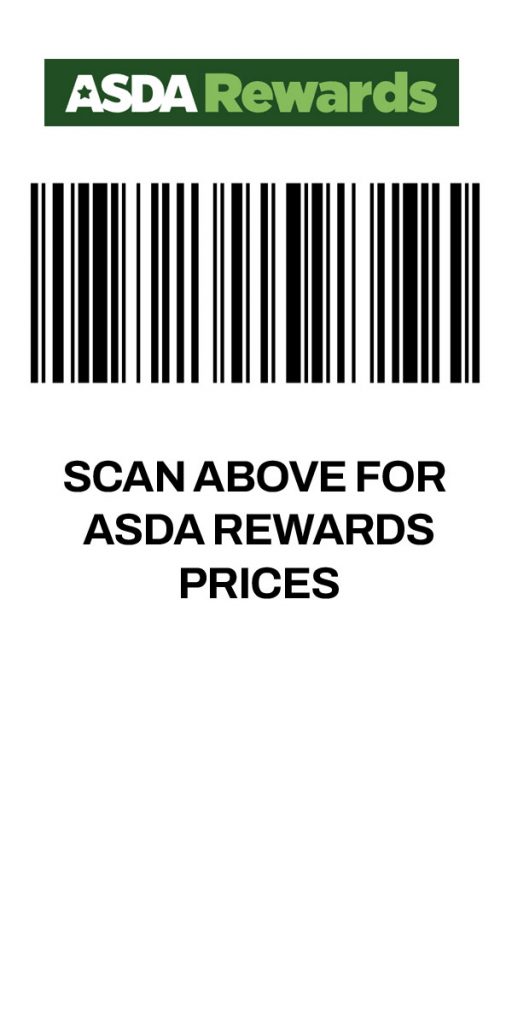
Adding a picture of your Asda Rewards card to your mobile wallet can be a handy way to quickly access your loyalty benefits without fumbling for the physical card. While most mobile wallets don’t directly support adding images of cards for scanning purposes (they rely on specific barcode or QR code formats), there are still ways you can keep a visual reference of your card within your phone’s digital space. Here’s a breakdown of how you can achieve this.
Forgot your Asda Reward Card, just use ours above.
It’s important to first understand that adding a picture of your Asda Rewards card to your mobile wallet like Apple Wallet or Google Wallet won’t make it scannable at the till. These wallets are designed to store digital versions of cards that communicate with payment terminals via NFC (Near-Field Communication) or by displaying specific barcodes or QR codes that the retailer’s scanner can read. A simple photograph lacks this functionality.
However, having a visual readily available can still be useful for quickly referencing your membership number if needed for online purchases or when contacting customer support.
Method 1: Using a Note-Taking App with Image Support
Many note-taking apps, such as Evernote, OneNote, Google Keep, or even the built-in Notes app on your smartphone, allow you to embed images within notes. This is a straightforward way to keep a picture of your Asda Rewards card easily accessible.
- Take a Clear Photo: Use your smartphone’s camera to take a clear, well-lit photograph of both the front and back of your Asda Rewards card. Ensure all the important details, especially the barcode or QR code and your membership number, are legible.
- Open Your Note-Taking App: Launch your preferred note-taking application.
- Create a New Note: Start a new note and give it a descriptive title like “Asda Rewards Card” or “Loyalty Cards.”
- Insert the Image(s): Look for an “insert image” or “+” button within the note-taking app. Select the photos you just took of your Asda Rewards card. You might be able to insert both the front and back images into the same note.
- Add Optional Information: You can add extra details to the note, such as your name as it appears on the card or any relevant notes about the program.
- Pin or Favorite the Note (Optional): Most note-taking apps allow you to pin important notes to the top of your list or mark them as favorites for even quicker access.
Method 2: Creating an Album in Your Photo Gallery
Your smartphone’s photo gallery is another simple place to store a picture of your Asda Rewards card for quick reference.
- Take a Clear Photo: As with the previous method, take clear photos of the front and back of your card.
- Create a New Album (Optional but Recommended): In your phone’s gallery app (e.g., Google Photos, Apple Photos), create a new album specifically for loyalty cards or important documents. This will help keep things organized.
- Move the Photos to the Album: Select the photos of your Asda Rewards card and move them into the newly created album.
- Favorite the Album (Optional): Some gallery apps allow you to favorite albums, making them appear at the top of your album list for easier access.
Method 3: Using a Dedicated Digital Wallet App (for Visual Reference)
While standard mobile wallets don’t support image-based scanning, some third-party digital wallet apps allow you to store images of various cards for informational purposes. These apps might not offer the seamless integration of Apple or Google Wallet, but they can serve as a centralized place for visual references.
- Download a Suitable App: Research and download a digital wallet app that explicitly states it allows storing images of cards.
- Create a New Entry: Within the app, look for an option to add a new card or item.
- Upload the Image(s): The app should provide an option to upload the photos you took of your Asda Rewards card.
- Add Details: You might be able to add other relevant information like your name and membership number.
Important Considerations:
- Security: Be mindful of the security implications of storing images of your cards. While a loyalty card doesn’t typically contain sensitive financial information, it’s still a good practice to keep your phone secure with a strong passcode or biometric authentication.
- Functionality: Remember that these methods provide a visual reference only. You will still likely need to present your physical Asda Rewards card or use the Asda Rewards app at the till to earn and redeem points.
- Official Asda Rewards App: The most direct and functional way to manage your Asda Rewards is through the official Asda Rewards mobile application. This app typically provides a digital barcode or QR code that can be scanned at checkout, eliminating the need for the physical card altogether. If you haven’t already, consider downloading and using the official app for the best experience.
By using one of these methods, you can have a readily accessible picture of your Asda Rewards card on your mobile device, even if it doesn’t integrate directly into your main mobile wallet for scanning. This can be a convenient backup or reference point.