
Your Guide to Using the Advantage Card Barcode
The Boots Advantage Card is a popular loyalty scheme in the UK, rewarding shoppers with points for their purchases, which can then be used to save money on future shopping trips. Accessing these benefits hinges on presenting your Advantage Card barcode at checkout.
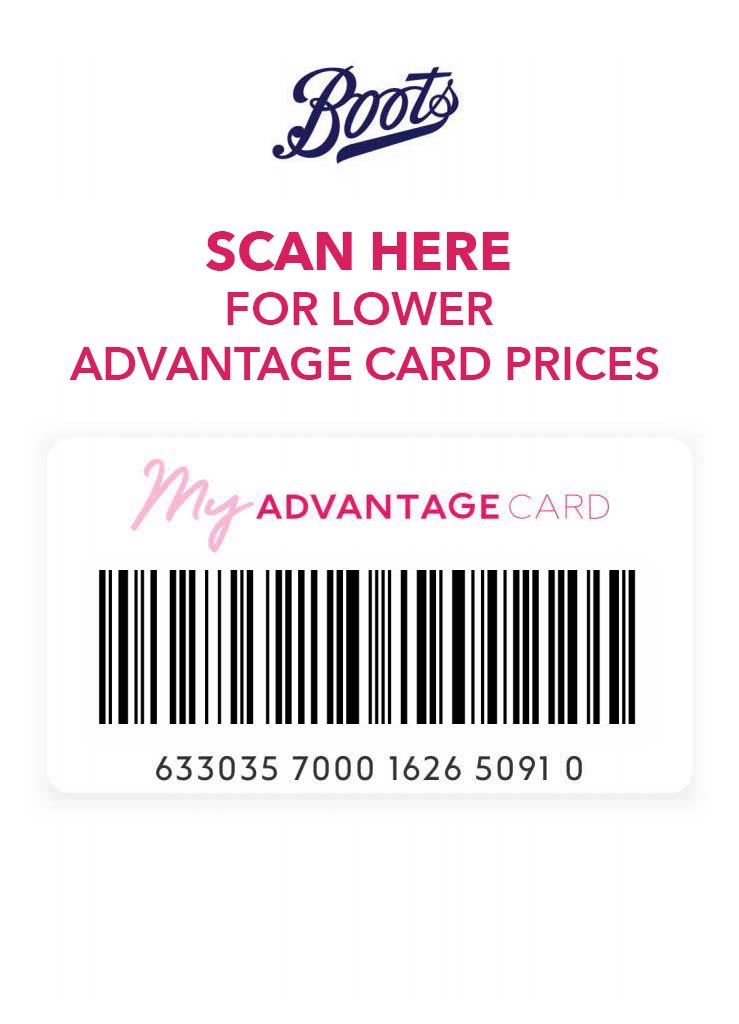
Advantage Card barcode in Google Pay
But what happens if you’ve forgotten your physical card or struggle with patchy in-store mobile signal when trying to use the app? This guide explores various ways to keep your Boots Advantage Card barcode handy on your phone.
Why Go Digital with Your Advantage Card?
Carrying a digital version of your Boots Advantage Card barcode means one less card in your wallet and ensures you’re always ready to collect points or redeem rewards. It’s particularly useful if you frequently forget your physical card or encounter issues accessing the Boots app due to poor mobile reception in-store – a common frustration for many shoppers.
Accessing and Using Your Boots Advantage Card Barcode Digitally:
There are several convenient methods to ensure your Advantage Card barcode is always accessible:
- The Official Boots App: The primary way to access your Advantage Card digitally is through the official Boots app (available for Android and iOS). Once you download the app and link your Advantage Card account (by providing your card number, date of birth, and postcode), you can display a digital version of your card, complete with a scannable barcode. The app also offers additional features like personalised offers, points balance checking, and health services.
- To use: Simply open the app, navigate to the ‘Advantage Card’ section, and present the barcode to be scanned at the till.
- Potential Issue: The main drawback can be reliance on a stable internet connection or mobile signal to open the app in-store.
- Digital Wallets: Apple Wallet and Google Pay: For quick and offline access, you can add your Boots Advantage Card to your phone’s digital wallet.
- How to add (general steps):
- Open the Boots app and go to the ‘My Card’ or equivalent section.
- Look for an “Add to Apple Wallet” or “Add to Google Wallet” (or Google Pay) button.
- Follow the on-screen instructions.
- Benefits: Once added, the card is stored directly in your phone’s wallet, meaning you don’t need an internet connection to access the barcode at the checkout. This is often the most seamless way to present your card.
- How to add (general steps):
- Taking a Screenshot or Picture of Your Barcode: A straightforward workaround is to take a clear picture or screenshot of your Advantage Card barcode. This could be from your physical card (if the barcode is clear and flat) or, more reliably, a screenshot of the barcode displayed in the Boots app or your online account.
- How to do it effectively: Ensure the image is clear, well-lit, and captures the entire barcode without distortion. Save it in an easily accessible place on your phone, like a “favorites” album.
- Considerations: While often effective, some scanners might have trouble reading a barcode from a simple image if the screen brightness isn’t adequate or the image quality is poor. It’s a less official method than using the app or a digital wallet.
- Third-Party Loyalty Card Apps (e.g., Curve, Stocard): Several third-party apps are designed to store multiple loyalty cards in one place. Apps like Curve not only act as a card aggregator but also often feature a section to store loyalty card barcodes. Other dedicated loyalty apps like Stocard also offer this functionality.
- Process: You typically scan your physical card’s barcode or manually enter the number into the app.
- Benefit: Consolidates all your loyalty cards, reducing the number of apps you need to open.
- Note: Ensure the app you choose is reputable and secure.
Maximising Your Advantage Card Benefits Digitally:
- Student Discount: If you’re a student, ensure your student discount is linked to your Advantage Card. Presenting your digital barcode should still allow you to receive your discount, but it’s always wise to confirm this in-store when first linking it or if you have any doubts.
- Ensure Scan-ability: When presenting a digital barcode (especially a screenshot), make sure your phone screen is bright enough and the image is displayed clearly and fills a good portion of the screen.
- Keep Your App Updated: For the best experience and access to the latest offers, keep your Boots app updated to the latest version.
By utilising these digital methods, you can ensure you never miss out on valuable Boots Advantage Card points and enjoy a more convenient shopping experience. Choose the option that best suits your needs and technological comfort level.